
If you own a lot of music video files you may find it useful to convert a music video file into an mp3 audio file – so you can listen to it on your iPod/mp3 player.
Last week saw the release of version 2.0 of popular media player VLC. Apart from the core functions of playing audio and video/DVD files, VLC also provides a simple way to convert video files to mp3 tracks.
Using VLC To Convert Video Files To MP3 Tracks – I have tested video files with the following formats: .flv .mp4 .mpg .avi and they successfully converted to mp3 tracks but other video formats may work too.
1. Open VLC and from the menu select ‘Media’ then ‘Convert / Save’ to display the Open Media window:

2. Click the ‘Add’ button then browse to and select the video file you want to convert
3. Click the ‘Convert / Save’ button to open the Convert window – the source video file you just chose will already be displayed as in the example below:
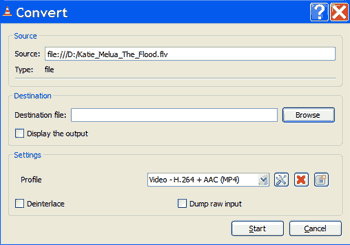
4. Click the ‘Browse’ button and browse to the folder where you want the mp3 track to be saved then type in the filename you want to give it including the .mp3 extension and click ‘Save’ e.g. in my example I would give the track a filename of katie melua – the flood.mp3

5. Back in the Convert window – it should now show the destination file location and title (including .mp3 at the end)
6. Click the drop down arrow in the Settings section and change the profile from ‘Video – H.264…’ to ‘Audio – MP3’. Note: In the latest VLC 2.0.4 there is a slight bug – you have to choose ‘Audio – MP3 (MP4)’ instead of just ‘Audio – MP3′ or else VLC will crash
7. OPTIONAL – press the wrench/screwdriver icon next to the Audio profile to edit the profile. Click the Audio Codec tab and change to a higher bitrate if required (default is 128 kb/s) then click ‘Save’
Note: the higher the bitrate the larger the mp3 file size will be. I increased to 192 kb/s but didn’t notice any real improvement beyond that – a lot will depend on the sound quality of the original video.
8. Now press the ‘Start’ button to begin the conversion process
The conversion usually takes less than half a minute for an average music video – you can see progress along the time toolbar (and the titlebar of VLC begins with ‘Streaming’ during the process). Once complete, you should find your new .mp3 audio file saved in the location you specified.
Conclusion
VLC is a great media player anyway but it also does a good job of converting music video files to MP3 songs.
Tip: you can also use VLC to take a snapshot picture from a video.
The mp3 quality mainly depends on the quality of the sound in your original video but is generally good enough for normal listening.

i am not able to play the extracted audio mp3 file other than vlc media player,if i use tha audio in powerpoint or some other applications,it shows the mp3 file is corrputed.
Hi,i followed the above step.but the main problem was when i played the mp3 file i was not able to hear the sound from it though it was running,.mine is 2.O4 version.show in setting dialog box i selected audio-mp3(mp4).but i don,t know what i have to do in edit selected profile.pls gve me a solution to ds prb.thank u
thanks. It’s working fantastic!
Hi,
How to select multiple video files and convert to mp3 audio files at once.
Thanks!
@coolking – I don’t believe you can do that from the VLC interface, only one conversion at a time.
Ps: if you have the latest VLC 2.0.4 there is a slight bug in it – in step 6 you have to choose ‘Audio – MP3 (MP4)’ instead of just ‘Audio – MP3? or VLC crashes
Cant get it working…
I put in disk, choose open disk… It lists the 43 (nursery rhymes) tracks
I choose AudioMP3… convert… it asks for a name ??? so i call it ‘songs’
it gives it a container ??? of .ps (again whats with this)
i press convert, wait ages, and… one large file with .ps extension.
if i use Win Media Player, all i have to do is click Rip Disk (but stupid prog doesnt label songs)
Both Losers
You sound like you’re just trying to rip an audio cd but this article is to convert from a video file (like .flv .mp4 .mpg .avi) to mp3?
Note: if you have the latest VLC 2.0.4 there is a slight bug in it – in step 6 you have to choose ‘Audio – MP3 (MP4)’ instead of just ‘Audio – MP3’ or it will crash
Thanks for the reply,
i tried the other mp3(mp4) but i still get just one large file, instead of individual tracks.
Oh well, i’ll just manually rename them after using WMP.
Cheers, Jon
I’ve tried numerous times to try and convert vlc audio files to mp3, following the simple steps. I’ve named the file and added the extension .mp3 but the end result is a file with 0 bytes.
Please help.
Hi Darren, you mean video files to mp3? It could result in 0 bytes if you don’t change the Profile in step 6 to ‘audio-MP3’ – if left on the default video profile VLC crashes in XP and leaves you with a 0 byte mp3 file.
If that isn’t your problem the only other things I can suggest (as it works fine on every system/OS I try it on) is:
Double check and try the steps again but this time also do step 7 (to edit the Audio-MP3 profile) and ensure that the following are set: Encapsulation tab – RAW is selected, Audio Codec tab – Audio box is ticked, Codec is MP3, bitrate is 128kb/s, channels is 2, sample rate is 44100 – then click Save to save this Audio-MP3 profile and continue with step 8.
If it still fails I can only assume you have a codec issue (maybe due to a codec pack?) or the video file is corrupt/in a format not supported for conversion (try another).
If not, you could un/reinstall VLC in case previous upgrades have left problems behind or raise with Videolan Support forums to see if they can look at your error logs?
im really confused ive done everything very carefully (several times) and it still doesnt seem to have actually saved. it’s never there in the file i saved it to, it’s nowhere to be seen.
any suggestions on what to do?
Hi Becca, just checked in latest 2.0.1 version and still works for me. Are you using a video in one of the 4 formats specified in the Note at top of article?
Check Step 5 – the ‘Destination file’ box must now have the location and name of file you want to save in mp3 format e.g. C:\users\me\music\newsong.mp3 – that is where the mp3 should be saved. (The default is to save to C:\program files\videolan\VLC – may be worth checking to see if your previous tests have been saved in there?)
Check step 6 – you must change to Audio-MP3 or it won’t work
In Step 8, do you see the progress bar moving across as it creates the MP3 (you should)? Is VLC still open at the end of the process (it should be unless it has crashed)?
Works ok in my testing on XP through to W7. Step 4 is the key one for location of file to be saved.