
The error message “BOOTMGR is compressed Press Ctrl+Alt+Del to restart” may appear when you start up your computer.
If you press Ctrl+Alt+Del that just restarts the computer and then displays the same error message again.
I saw this error recently on a customer’s computer and thought I’d share how to fix it – the error can affect Windows 10, 8, 7, Vista and XP computers.
What Is BOOTMGR?
BOOTMGR refers to the Boot Manager – an important Windows system file. If it is compressed, it can’t be used and Windows can’t start (boot up). The file must therefore first be uncompressed for Windows to be able to boot properly.
File compression used to be a good way to save hard drive space – back in the days when hard drives were maybe 2 or 20 GB in size…
However, modern drives offer hundreds (or thousands) of GB storage so there really is no need to compress files.
Why is BOOTMGR Compressed?
There are two likely reasons that it may have been compressed.

- 1. You installed a ‘Speed Booster’ or ‘System Optimizer’ type of program – perhaps one with grand claims of boosting performance and with a super duper registry cleaner thrown in… See ‘do I need a registry cleaner’ – the short answer is No.
Such a program often causes this problem by compressing the whole of the system partition (usually the C: drive) to save space – including the crucial BOOTMGR file. This is what happened in my customer’s case.
File compression (even when done properly) may slow down system performance anyway so it is a lousy thing for a ‘speed booster’ utility to do…
- 2. You manually compressed the whole of the system partition (via the drive’s Properties window).
How To Fix BOOTMGR is Compressed Error
The fixes for Windows 10 and all earlier versions of Windows are very similar – they require you to recreate the BOOTMGR file.
Windows 10/8/7/Vista Fix
Boot into the System Recovery Options using the preinstalled Advanced Boot Options or a Windows installation/recovery DVD – see the illustrated tutorial at Sevenforums for instructions if required.
Select ‘Startup Repair’ and wait until the repair attempt completes. If successful you can then restart the computer and Windows may boot up normally.
If the repairs fail and/or the computer does not restart into Windows normally, proceed with the 5 step fix as follows:
Step 1
Boot into the System Recovery Options again but this time select ‘Command Prompt’ instead of Startup Repair – this will take you to a windows Command Prompt.
[Note: if using RAID for multiple hard drives you may not see your version of Windows listed in System Recovery Options, during the loading of the recovery process. In this case you would need to press ‘Load Drivers’ and browse to your RAID drivers so that your version of Windows can be listed.
Step 2
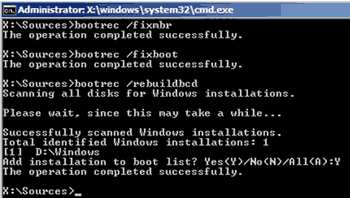
Type bootrec /fixmbr and press Enter.
Step 3
Type bootrec /fixboot and press Enter.
Step 4
Type bootrec /rebuildbcd and press Enter. Type Y and press Enter if asked to add the installation to the boot list:
Step 5
Now type Exit and press Enter to restart the computer. The error message should not appear and Windows should start up normally.
Windows XP Fix
You will need to have a bootable XP installation CD available.
Step 1
Log into the Recovery Console command prompt by following steps A to F in my article on fixing ntldr. You should now be in the C:\Windows directory.
Step 2
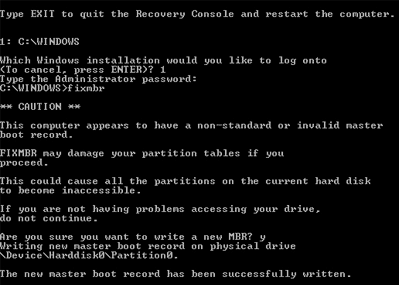
Type fixmbr and press Enter. Press y to accept the warning and proceed:
Step 3
Type fixboot and press Enter. Press y to to confirm and proceed:

Step 4
Type Exit and press Enter to restart the computer.
Step 5
The error message should not appear and Windows should start up normally.
Alternative BOOTMGR Is Compressed Fix
This fix should not be required but, if for some reason the previous fixes failed to resolve the problem, you may need to decompress all files on the system partition manually.
- Log into the System Recovery Options \ Command Prompt (Vista/Windows 7/8/10) or Recovery Console command prompt (XP).
- Type
compact /u /a c:\*.*and press Enter. The command may take a long time (hours) to complete on a very large drive – leave it until finished. - Once it finishes decompressing all files, type Exit and press Enter to restart the computer. The error message should not appear and Windows should start up normally.
Note: if your Windows system drive is not c: then change the c in the command to your drive letter e.g. d:\
What Does The Compact Command Do?
This command decompresses (/u) all files (*.*) on the c:\ drive including hidden and system files (/a).
Conclusion
Unfortunately Windows does nothing to prevent an ‘optimizing’ program (or a user) from compressing Bootmgr – even though it means that Windows will not boot…
However, this problem is relatively straightforward to fix and easy to avoid in future – don’t use system optimizing utilities that may compress the Windows system partition and don’t try to compress it manually.


Thanks a lot, you save me
Thanks – Problem solved.
My cdRom is not opening.What do I do?
THANK YOU, THANK YOU, THANK YOU for your detailed instructions on recovery. I had envisioned having to recreate my entire drive after having just reinstalled everything to a larger HDD. Your instructions solved my problem. So wonderful to have online help from people who know what to do. Never again willl I compress my files……..
Thanks for a very detailed answer. I followed it and got my system up and running straight away. Thank you!
Thanks So much.The Problem Solved Easily.
You are my hero! Thank you, worked perfectly!
Thanks, Work Great…
Hello, I just compressed my disk to try to save space, and I’m getting the ‘bootmgr is compressed’ message. Problem is: I have no access to a USB nor the windows vista disk. Is there any other way to fix this? The only options I have are to start into the bootmgr is compressed message, or to go into BIOS. The only boot options I have are the ‘SATA’ drive, or to ‘Enter Setup” which leads me to BIOS.
Hi! i hope you can help me. I accidentally included the boot files when i compressed my drive C, and now I have this dilemma. I don’t have cd-rom so I tried the Roxio bootmgrfix thru usb, and I manage to skip the “bootmgr is compressed. press ctrl alt del to restart”, but it was replaced with “Missing Operating System”. What should I do?
Thanks! you’re a life-saver. :)
Thanks a lot for the solution. I entered into the bootrec commands as you directed and it was succesfull. After restarting, the computer opened and was able to boot normally without the error report again. Thank you so much.
@Benson – no problem, glad you’re up and running again :-)
Hi! my dvd-rom is broken so I’m using my portable hard drive. My ISO programs and windows7 are in my hard drive. How can I fix this reboot problem without using the recovery CD? Is it even possible? Thanks!
@Melissa – if you don’t have the preinstalled Advanced Boot Options (F8 menu) then you could either:
1. buy/borrow a working DVD drive (internal or even an external USB one)
2. take out the hard drive and plug it into a working PC then manually uncompress all the files on your drive from there
My laptop is Compaq Visario 3000 series initially operating on Vista home basic. I changed and put in Windows 7 home basic. I tried to manually compress the Disk C which has lead to the BOOTMGR IS COMPRESSED press Ctrl+Alt+Del to restart is appearing. My computer has no recovery disc but it has an in built recovery system which uses F11 to start recovery. but F11 is not responding so that i can follow your instructions. What should i do?
@Benson – built in recovery (if present) is started by pressing F8 as described in the linked tutorial, not F11.
If you don’t have it you could boot from a W7 recovery disc instead – anyone with a working W7 PC could burn the disc for you from Control Panel \ Backup and Restore then choose the ‘create a system repair disc’ link in the left hand panel.
On the contrary my brother, my laptop built in recovery uses command F11 and not F8. What is a W7 PC because i dont seem to see it on my laptop
@Benson – anyone with a working Windows 7 computer (W7 PC) could burn the disc for you.
I think you’ll find that F11 is the manufacturer’s system recovery option (i.e. restore back to the day you bought the computer) which isn’t the type of recovery you need here.
If you have the right Windows 7 system recovery option (like what you get on a recovery CD) you’ll find it at the top of the advanced boot options on F8 (above the 3 safe mode choices) – if it’s not there then you’ll need the CD instead
thnxx for this solution….it really helped a lot…..my lappy was facing d same problem..bt now it is working fine!