
The error message “BOOTMGR is compressed Press Ctrl+Alt+Del to restart” may appear when you start up your computer.
If you press Ctrl+Alt+Del that just restarts the computer and then displays the same error message again.
I saw this error recently on a customer’s computer and thought I’d share how to fix it – the error can affect Windows 10, 8, 7, Vista and XP computers.
What Is BOOTMGR?
BOOTMGR refers to the Boot Manager – an important Windows system file. If it is compressed, it can’t be used and Windows can’t start (boot up). The file must therefore first be uncompressed for Windows to be able to boot properly.
File compression used to be a good way to save hard drive space – back in the days when hard drives were maybe 2 or 20 GB in size…
However, modern drives offer hundreds (or thousands) of GB storage so there really is no need to compress files.
Why is BOOTMGR Compressed?
There are two likely reasons that it may have been compressed.

- 1. You installed a ‘Speed Booster’ or ‘System Optimizer’ type of program – perhaps one with grand claims of boosting performance and with a super duper registry cleaner thrown in… See ‘do I need a registry cleaner’ – the short answer is No.
Such a program often causes this problem by compressing the whole of the system partition (usually the C: drive) to save space – including the crucial BOOTMGR file. This is what happened in my customer’s case.
File compression (even when done properly) may slow down system performance anyway so it is a lousy thing for a ‘speed booster’ utility to do…
- 2. You manually compressed the whole of the system partition (via the drive’s Properties window).
How To Fix BOOTMGR is Compressed Error
The fixes for Windows 10 and all earlier versions of Windows are very similar – they require you to recreate the BOOTMGR file.
Windows 10/8/7/Vista Fix
Boot into the System Recovery Options using the preinstalled Advanced Boot Options or a Windows installation/recovery DVD – see the illustrated tutorial at Sevenforums for instructions if required.
Select ‘Startup Repair’ and wait until the repair attempt completes. If successful you can then restart the computer and Windows may boot up normally.
If the repairs fail and/or the computer does not restart into Windows normally, proceed with the 5 step fix as follows:
Step 1
Boot into the System Recovery Options again but this time select ‘Command Prompt’ instead of Startup Repair – this will take you to a windows Command Prompt.
[Note: if using RAID for multiple hard drives you may not see your version of Windows listed in System Recovery Options, during the loading of the recovery process. In this case you would need to press ‘Load Drivers’ and browse to your RAID drivers so that your version of Windows can be listed.
Step 2
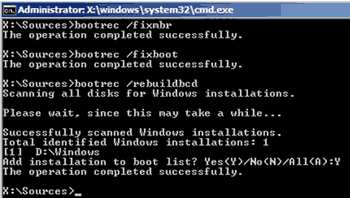
Type bootrec /fixmbr and press Enter.
Step 3
Type bootrec /fixboot and press Enter.
Step 4
Type bootrec /rebuildbcd and press Enter. Type Y and press Enter if asked to add the installation to the boot list:
Step 5
Now type Exit and press Enter to restart the computer. The error message should not appear and Windows should start up normally.
Windows XP Fix
You will need to have a bootable XP installation CD available.
Step 1
Log into the Recovery Console command prompt by following steps A to F in my article on fixing ntldr. You should now be in the C:\Windows directory.
Step 2
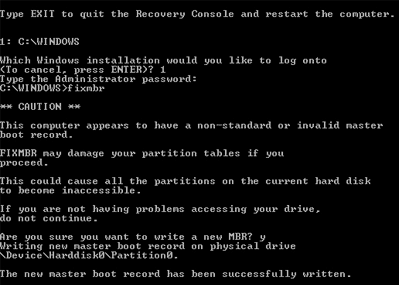
Type fixmbr and press Enter. Press y to accept the warning and proceed:
Step 3
Type fixboot and press Enter. Press y to to confirm and proceed:

Step 4
Type Exit and press Enter to restart the computer.
Step 5
The error message should not appear and Windows should start up normally.
Alternative BOOTMGR Is Compressed Fix
This fix should not be required but, if for some reason the previous fixes failed to resolve the problem, you may need to decompress all files on the system partition manually.
- Log into the System Recovery Options \ Command Prompt (Vista/Windows 7/8/10) or Recovery Console command prompt (XP).
- Type
compact /u /a c:\*.*and press Enter. The command may take a long time (hours) to complete on a very large drive – leave it until finished. - Once it finishes decompressing all files, type Exit and press Enter to restart the computer. The error message should not appear and Windows should start up normally.
Note: if your Windows system drive is not c: then change the c in the command to your drive letter e.g. d:\
What Does The Compact Command Do?
This command decompresses (/u) all files (*.*) on the c:\ drive including hidden and system files (/a).
Conclusion
Unfortunately Windows does nothing to prevent an ‘optimizing’ program (or a user) from compressing Bootmgr – even though it means that Windows will not boot…
However, this problem is relatively straightforward to fix and easy to avoid in future – don’t use system optimizing utilities that may compress the Windows system partition and don’t try to compress it manually.


No help needed anymore. I figured it out. Thanks.
I used a genuine XP CD this time. I was able to boot from the CD. Now, this is what I see after I pressed R to run recovery console.
‘Setup did not find any hard disk drives installed in your computer.
Make sure any hard disk drives are powered on and properly connected to your computer, and that any disk-related hardware configuration is correct. This may involve running a manufacturer-supplied diagnostic or setup program. Setup cannot continue. To quit Setup, press F3.’
I definitely have a hard disk drive installed. I removed the HDD from the laptop, re-seated the connector, and tried to recovery process again. I got the same message.
Thanks for any additional advice.
I started this process to fix ‘BOOTMGR is compressed’ error statement by following steps A to F in your article on fixing ntldr..
When I try to boot from the Windows XP cd, I get this message:
Starting Caldera DR-DOS
EMM 386: Warning: Address line A20 already enabled.
EMM 386: Cannot find an unused 64 kilobyte range of upper memory to use for an EMS page frame. Using FRAME=NONE.
Frame=NONE
Any ideas what I should do next?
@Peter – looks like a CD fault, DR-DOS has nothing to do with Microsoft/XP so your CD probably isn’t a bootable XP CD. Use a genuine XP CD if possible.
Or, if you burned from an ISO file, try again with a better program such as CdburnerXP (free) – Nero often produces this error if you don’t use all the right settings to burn the disc…
Thanks Roy. I will try that.
Thanks for your solution………..
Hi I have one doubt, My lap is of Sonly vaio with inbuilt Vista. I am using it from 2 years onwards. Today I Installed Windows 7 os in “D” drive, all the format has completed, with in the installation system restarted automatically. After restarting I am getting the same message “BOOTMGR is Compressed and Alt+Ctrl+Del to restart”. Now I am unable to enter into either vista or windows 7.
In my lap some important documents are there. Can you please suggest me how to recover my lap with the previous data.
Hi i got this bootmgr compressed after doing that cleanup. Yes. I know now not to do it again. Are ther any combination of keys to tap as it is trying to boot up so i can bypass this and reboot it? Dont have the disk. What options are there to do without the recovery disk?
Very frustrated,
Alfred
I have a problem with the bootmgr. is compressed error. It happened when I first tried to recover the hard drive to factory setting. It went okay until the 3rd recovery disk and then it seems to stop at 21% on the 3rd disk. Is there any way to fix this? I have ran diagnostic and everything passed. I don’t have a copy of the xp installation disk. Is there a way to download it for free?
@Mai – have you run a full hard drive diagnostic scan to check for errors? If yes and none found, perhaps the 3rd disk is faulty (if it’s XP the disc will probably be > 6 years old). Nowhere legitimate to download free XP installation disk – try and borrow one.
Using a standard XP disc you may need to install some drivers afterwards (these would have been included in the factory restore discs) – usually easy to find/download from the manufacturer’s website
Thanks alot……
Thnxx a lot buddy it worked for me …….thank you so much
Thanks it worked
Wow!!!!!
Thank you….. Amazing…..Just perfect
I have one question that i need help. Is there any way i can recover data that have been lost when the computer was formatted during installation of windows using the windows recovery disks.
Benson.
@Benson – if you have already reinstalled Windows after reformatting you may not be able to recover much as the data may have been written over. You could try using a program like EaseUS Data Recovery Wizard to see if there is anything left to recover – have a read about it here – http://www.easeus.com/datarecoverywizard/recover-formatted-partition.htm
If these are recovery disks from the manufacturer as to set the computer to default manufactory state where you also install Windows of course then I agree with Roy.
I have Acer and I have to use DVD 3 disks from Acer to install WinOS and/or recover to factory state. It deletes the partition and format aggressivly so it´s hard to recover any data. The recovery disks offer 2 option. To install new Windows or set the computer to the manufaturer default state. My last option is the factory state as it´s very hard to recover from it as Roy said.
However I have managed to use this software EaseUS Data Recovery Wizard which is great by the way, to recover all kinds of data from normal installation even though the disk is formatted. Usually when installing WinOS, you can choose to delete the old partition and afterwards it´s formatted automatically or you can just choose to just format the partition before installation.
The software EaseUS Data Recovery Wizard offer offers 4 options: 1. Deleted recovery, 2. RAW recovery, 3. Format recovery, 4. Advanced recovery. I´d say try all these options to learn what each option do.
I use RAW recovery as last option as it doesn´t creates date, stamps or file name.
What I have learned from all this is that before I use the Acer disks I use installation disk for Windows or borrow one to install over the old installation without prepartioning or reformatting. Just bear in mind to use installation disk that is either for 32b or 64b.
By that way I will be able to keep what is in Library, Downloads, Desktop, my emails, contacts and much more. This is my way to keep data I need if I can´t manage to use the computer as installation is necceesery. Installation like this creates “Win.old” folder where this is located. When I have copied these files to another disk I use EaseUS Data Recovery Wizard try to recover more. And it does.
After this I use my Acer disks to set (install) the computer to it´s manufactory default state. In fact it means, deleting and reformatting the partition aggressivly where the manufacturer made in the beginning with Windows and all drivers for all feature.
This wasn´t meant to be so long but I had to explain how I do this as I know it will help many people.
Thank you very much. You have help me to solve this problem easily. (from Malaysia)
thanq very………………………… much lovd d site prblem got solved.
I have a laptop Compaq visario 3000 which had an in built drive for the recovery of the laptop when you press F11. Since i changed operating system from Vista to Windows 7, this F11 key is in active though drive D shows that it still has the recovery to manufacturer set up. What can i do if possible to activate this function or is it possible i can make one inbuilt recovery using windows 7? What is the procedure for doing so?
Benson.
Zambia.